


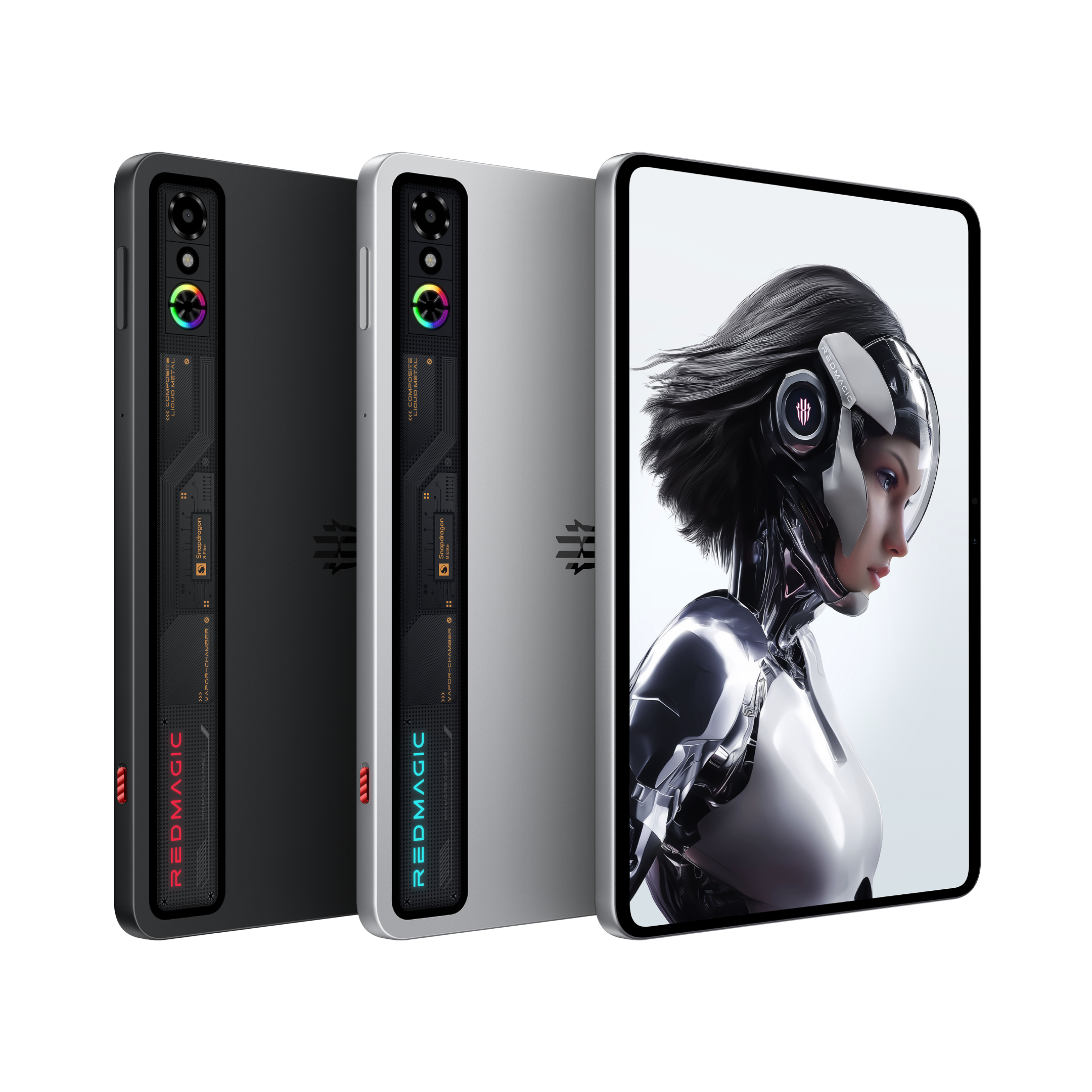
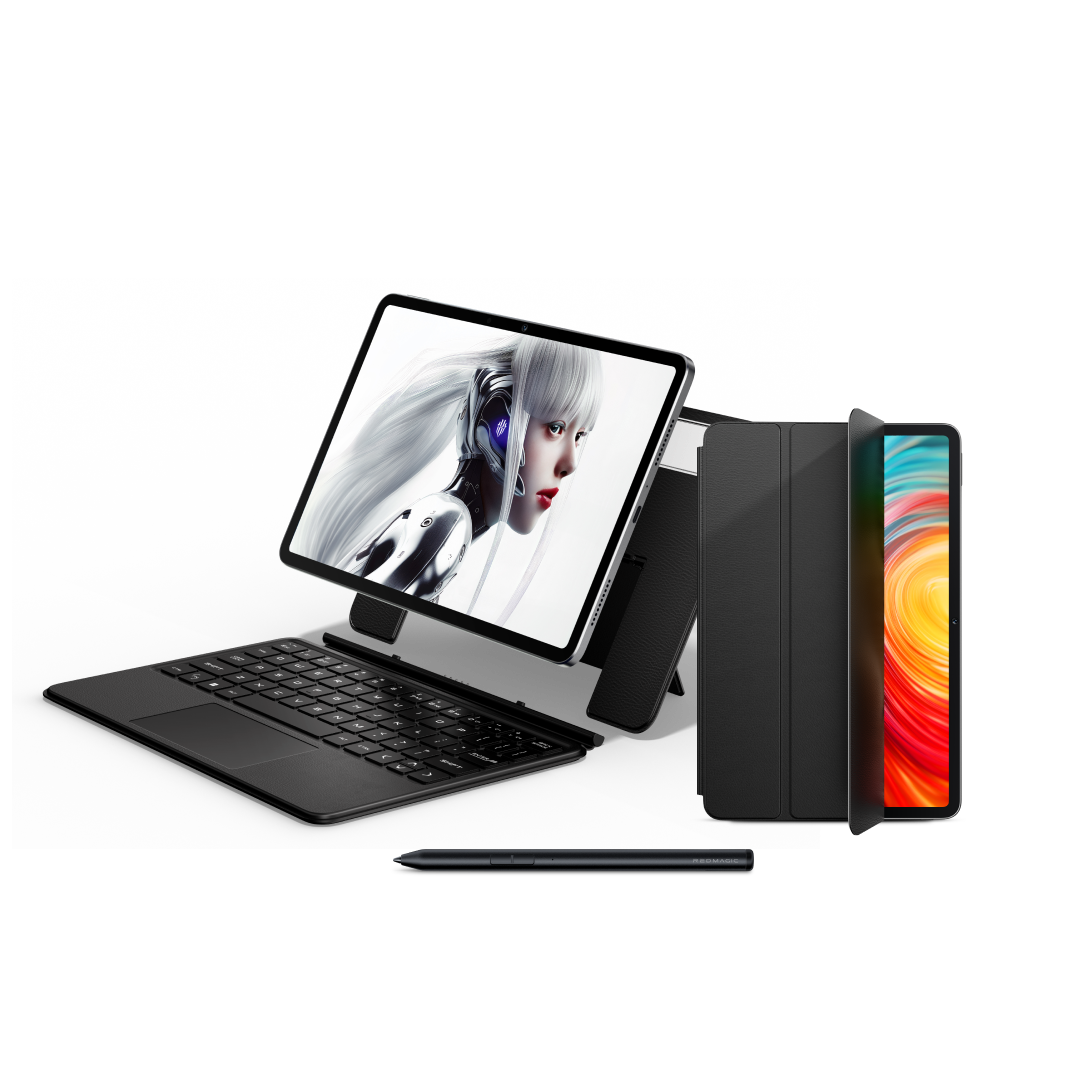


PUBG Mobile is one of the most popular battle royale games worldwide. This multiplayer battle royale shooter made its way to mobile platforms in 2018 and quickly became a fan favorite, especially for REDMAGIC users. The game requires tactical coordination, precision, and quick reflexes, and is powered by Unreal Engine 4 for high-quality graphics that ensure realistic, immersive, and stunning gameplay.
This means that PUBG Mobile demands a gaming device that can pull off superior performance, processing, and visual agility. But apart from high-performance power, this game is also demanding in strategy, from before the game even begins. PUBG Mobile asks players to use various maps, gaming modes, and customizable controls, alongside a voice chat feature for more coordinated attacks.

Players can choose to survive solo, in a duo, or in a squad with multiple players. These are all settings and adjustments that elevate your game and chances of winning. So, planning and management are a key part of your PUBG Mobile gameplay, which is why REDMAGIC is the best platform to play it on. When every second matters, your settings can be just as important as your hardware.
Today, we’ll be looking at how to tune your REDMAGIC device for the ultimate PUBG Mobile gameplay, finding the combination of FPS, controls, sensitivity, and Game Space settings that keeps your game responsive and your performance consistent throughout a match. Now, let’s look at what makes our devices ideal for PUBG Mobile.
Why PUBG Mobile Players Choose REDMAGIC
We’ve already established that PUBG Mobile is a demanding game that needs hardware and features that can keep up. However, it's also the game that’s most popular with our REDMAGIC fans, according to our research. So, why is that? Well, it’s probably due to the vast amount of control you have in your hands.
While the latest Snapdragon processors, pioneering cooling systems, and large batteries are all attractive REDMAGIC features, our gameplay options break boundaries and offer mobile gamers a whole world of opportunity. Every REDMAGIC device comes equipped with the central Game Space hub that allows you to monitor, manage, and adjust gameplay and device settings as you play.

In this space, you’ll have the option to toggle different performance modes as needed, where each mode plays a certain role and can be used in specific situations or for specific games. With more performance mode options, you can tackle more graphically demanding and intensive games with ease, like PUBG Mobile.
Coupled with our unique REDMAGIC Frame Boost feature, you can also sharpen the graphics of certain popular titles, effortlessly pushing each game to 120fps with frame interpolation technology that generates additional frames between the ones natively rendered by a game.

In fact, our reliability with PUBG Mobile is so globally recognized that we’ve become the Official Gaming Phone Sponsor of the 2026 PUBG MOBILE Global Championship being held in Istanbul, Türkiye, in December this year. Here, we’ll be showcasing the REDMAGIC 11S Pro as the ultimate smartphone for competitive gamers, while 39 teams from around the world will come together with the ultimate goal of becoming PUBG MOBILE world champions.
Now, there is no universal “best” configuration for every game you play, and it ultimately depends on your preferred controls and gaming style, but we can show you how to adjust REDMAGIC settings to amplify your PUBG Mobile gameplay on a general level. We recommend that you use the recommendations below as a starting point, then fine-tune them in the game’s Training Grounds.
Start With Smoothness
For competitive gameplay, you should always try to prioritize stable frame rates over maximum graphical detail. PUBG Mobile has expanded high-frame-rate support across more devices, while its recent technical improvements have introduced options designed to improve frame stability and reduce performance load. On a compatible REDMAGIC device, you can start by opening Settings > Graphics and checking if the highest frame-rate option is available for you. A good priority order is:
-
120 FPS: Choose this when your REDMAGIC phone and current PUBG Mobile version support it consistently.
-
90 FPS: An excellent balance if 120 FPS is unavailable or does not remain stable.
-
60 FPS: Still highly playable and preferable to an unstable higher frame rate.
-
Lower FPS: Useful if you are experiencing heat, throttling, or battery drain.
If your goal is competitive play, try Smooth graphics with the highest stable FPS option rather than automatically choosing the highest visual preset. Current PUBG Mobile guides similarly recommend stabilizing FPS before increasing image quality. Remember, the important word is stable. A consistent 90 FPS can feel better than a 120 FPS mode that repeatedly drops frames during intense fights. PUBG Mobile itself recommends lowering graphics and FPS when heat or battery consumption becomes an issue.
On YouTube, @immersed pubg showed viewers how to enable 120 FPS and HDR in PUBG Mobile using their Astra 2 gaming tablet by first switching to Diablo performance mode, then choosing Super Pic Quality in the Game Space overlay menu.

Sourced from @immersed pubg
Now, activating Diablo mode will make the temperature rise and drain your battery faster, which is why you should activate your phone’s cooling system, enable Charge Separation if necessary, or invest in a cooler for consistent performance.
Recommended PUBG Mobile Graphics Settings
PUBG Mobile combines expansive environments, long-distance visibility, detailed textures, and plenty of simultaneous action. A typical match can move from quiet exploration to an intense firefight in seconds, forcing your device to constantly process changing environments and effects. For a competitive PUBG Mobile setup on your REDMAGIC device, try this as your starting point:
|
Setting |
Recommended Starting Point |
|
Graphics |
Smooth |
|
Frame Rate |
Highest stable option |
|
Style |
Your preference |
|
Anti-Aliasing |
Off if prioritizing performance |
|
Shadows |
Off or Low |
|
Auto-adjust graphics |
Off while tuning |
|
Brightness |
Comfortable or high enough for visibility |
Now, the exact menu options can change with the game’s updates and your particular device’s support, so treat these as principles rather than permanent settings. Once you have established stable performance, you can experiment with higher visual settings. If you notice frame drops during large firefights, return to the lighter configuration.
For improved visual acuity, the REDMAGIC Astra 2's 2.4K OLED panel offers plenty of detail, while its 16:10 aspect ratio gives the game a spacious feel. The extra screen real estate can also make managing controls and scanning the battlefield more comfortable compared with a conventional smartphone.
Build Your Controls Around Your Hands
PUBG Mobile's default controls are a useful starting point for your ultimate setup, but competitive players will usually benefit from a more customized layout. Ergonomics plays a much more important role in your gameplay than many players often realize.
For two-thumb players, it’s easier to keep movement on the left and camera end, while keeping aiming and firing inputs on the right. You should make your frequently used buttons easy to reach without forcing your thumb away from the area where you need to aim. If you’re comfortable with using three- or four-finger controls, you can move firing and other important actions to positions accessible by your index fingers. This allows you to move, aim, and fire simultaneously.

The most important principle is to minimize unnecessary movement. Try to keep these actions within easy reach:
-
Fire
-
ADS/scope
-
Crouch
-
Jump
-
Prone
-
Peek
-
Reload
-
Weapon switching
While it might be tempting, don't simply copy another player's HUD because they’re on a winning streak. A professional player's layout is optimized for their hands, grip, and muscle memory—not yours.
Make the Most of Your REDMAGIC Shoulder Triggers
REDMAGIC gaming phones give you another advantage through customizable shoulder triggers. These tactile buttons give your phone a console feel and allow you to prioritize specific inputs. For PUBG Mobile gameplay, you should consider mapping them to actions that you perform frequently during combat. A practical starting point is assigning one trigger to fire and another to ADS/scope. This allows you to aim, move, and fire with less reliance on your thumbs.

You can also experiment with other mappings depending on your playstyle. The best configuration is the one that feels natural enough that you don't consciously think about the controls. Your Game Space also provides tools for customizing your shoulder trigger control sensitivity and management. Our latest REDMAGIC 12 Pro comes fitted with 520Hz ultra-responsive shoulder triggers for instant inputs and precise control in high-speed FPS and MOBA games.
Sensitivity: Don't Chase a “No-Recoil” Number
Sensitivity is one of the most personal parts of PUBG Mobile gameplay setup. Your camera sensitivity controls how quickly your view moves, while ADS sensitivity affects your aim while firing. The gyroscope sensitivity adds another layer by allowing you to adjust your aim through physical movement of the phone.
Now, rather than copying a sensitivity code from another player, use a starting range and adjust gradually. A reasonable starting point for many players is:
-
TPP No Scope: 100–125%
-
FPP No Scope: 85–110%
-
Red Dot/Holographic: 50–65%
-
2x: 35–50%
-
3x: 25–35%
-
4x: 20–30%
-
6x: 15–20%
-
8x: 10–15%
Remember, these aren't “perfect” values. They’re simply a baseline to test what feels right for your gameplay. If your crosshair moves past your target, lower the relevant sensitivity. If turning feels sluggish, increase it. Change one setting at a time so you can understand what each adjustment actually does.

In your REDMAGIC Energy Cube menu, we recommend choosing higher sampling rates to improve touch recognition for fast-paced or competitive games. However, this will also draw more power, so it would be useful to also engage Charge Separation to reduce battery strain.
Should You Use a Gyroscope?
If you haven't tried the gyro feature before with PUBG Mobile, use the game’s Training Ground to see if it fits the way you play. Scope On can be a gentler introduction, as the gyro activates when aiming. Once you're comfortable, you can then try Always On for more complete control.

Sourced from Android Central
The gyroscope feature can be particularly useful for recoil management and fine adjustments, but it requires practice. Turning it on and immediately using an aggressive sensitivity setting can make your aim feel less predictable. Start lower, practice with a familiar weapon such as an M416, and gradually increase sensitivity until you can control recoil without making large physical movements.
Optimize Your REDMAGIC Game Space
Your PUBG Mobile settings are only part of the equation because REDMAGIC’s Game Space offers you another layer of control over your gaming environment. As we’ve mentioned before, you can manage and adjust multiple gaming settings in our handy Game Space menu, where you have access to performance modes, plugins, Energy Cube settings, and much more.

For a competitive session, we would recommend using a higher performance mode. Rise or Diablo work great for fast-paced gameplay, but they tend to draw in some heat, so make sure your cooling system is also active. For less power-intensive gameplay, Eco or Balanced modes would suffice. In your Energy Cube menu, you can also adjust touch sampling, screen sensitivity, performance, and network-related settings.
If you're playing for a long session, don't assume maximum performance is always necessary. Use the performance mode that keeps the game stable while managing heat and battery consumption. You can also use your Game Space settings to reduce external distractions by blocking unnecessary notifications and calls to keep your attention on the match.
Keep Your Phone Cool with REDMAGIC
PUBG Mobile can be demanding on a phone, especially at high frame rates, and can bring in a lot of extra heat. Fortunately, REDMAGIC devices are designed around sustained gaming performance and pioneering cooling systems. The 12 Pro comes with our latest AquaCore Cooling System 3.0, featuring a re-engineered dual-loop flowing liquid, a raised-step vapor chamber, Liquid Metal 4.0, and a 25,500 RPM turbo fan.

Combined, these elements ensure sustained high frame rates and superior thermal control. PUBG Mobile players should always keep the cooling system active when appropriate, avoiding covering ventilation areas and paying attention to how the phone behaves during long sessions. If performance begins dropping after extended play, don't immediately change your sensitivity. First check whether the phone is getting hot and whether your FPS is becoming inconsistent.
The Best Settings Are the Ones You Can Repeat
The ultimate PUBG Mobile setup isn't about finding a magic combination of numbers; it's about creating a configuration that you can rely on every match. Start with Smooth graphics and the highest stable FPS, build a comfortable control layout, use the shoulder triggers if they suit your playstyle, and tune sensitivity gradually.
Most importantly, test changes in Training Grounds before taking them into ranked matches. Your REDMAGIC device gives you all the tools, settings, and performance headroom to customize PUBG Mobile around the way you play. Ultimately, the right setup is the one that keeps your controls predictable, your FPS consistent, and your attention on the next fight.
FAQ
Q: What’s the best FPS setting for PUBG Mobile on REDMAGIC phones?
A: Try to use the highest FPS option available on your REDMAGIC device where necessary. 120 FPS typically provides agile and responsive gameplay. If not, 90 FPS or a stable 60 FPS is better than an unstable higher setting.
Q: Should I use Smooth graphics for competitive PUBG Mobile?
A: Generally, yes. Smooth graphics can reduce the performance burden and make it easier to prioritize a high, stable frame rate. Lower graphics settings also reduce excessive heat or battery consumption.
Q: What sensitivity is best for gameplay on a REDMAGIC device?
A: This depends on your screen size, grip, finger layout, and gyro usage. The ideal sensitivity setting is what feels comfortable for you. Start with moderate values, test them in Training Grounds, and adjust one setting at a time.
Q: Is gyroscope worth using in PUBG Mobile?
A: Yes, especially if you want another method of controlling recoil and making fine aim adjustments. Start with Scope On if you're new to gyro, then consider Always On once you are comfortable.
Q: Should I use REDMAGIC shoulder triggers for PUBG Mobile?
A: Yes. Mapping triggers to frequently used actions such as firing or aiming can free up your thumbs and make simultaneous movement and combat actions easier.
Q: Why does PUBG Mobile start dropping FPS during long sessions?
A: Sustained gaming can increase heat and power consumption, which may affect performance. Activate your cooling system and adjust performance settings in your Game Space accordingly.
Q: Should I copy a professional PUBG Mobile player's sensitivity?
A: While you can use a professional’s settings as inspiration, we recommend finding the right layout for your gameplay style around what feels consistent and predictable for your muscle memory, skills, and comfort.